
We’re pleased to let NBN Atlas users know that we’ve moved from our older documentation and help pages to a new online Support Portal. This portal gives you one place to find helpful information, search through articles, raise support requests and keep track of existing tickets.
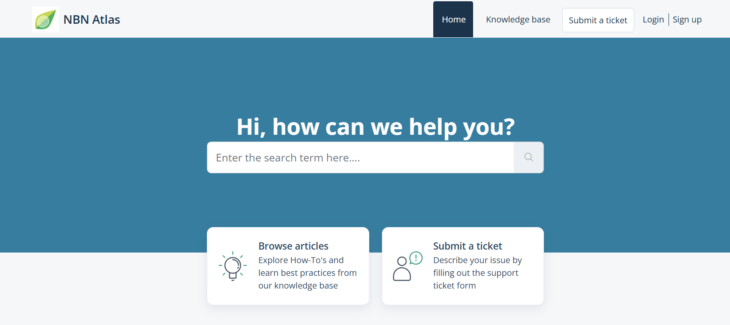
How to search for help
Before submitting a ticket, you may find the answer to your question is already available in our Knowledge Base:
- Enter your question or a few keywords into the search box
- From the dropdown list, select the article that best matches your question
- If you cannot find the information you are looking for, you can submit a ticket to ask us your question directly.
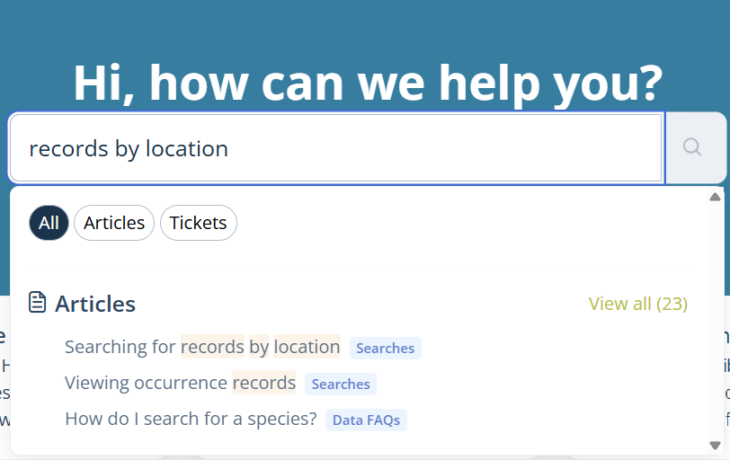
Tip: Try searching for a few keywords rather than typing out the whole question.
How to navigate the Knowledge base
If you prefer, you can also browse through all the different categories and articles:
- Click on Knowledge base on the top of the page.
- Scroll down through the various folders: Using the NBN Atlas, Share Data, Generalised Information, Videos… etc.
- Click on the article to read it. Within the article you can see other suggested articles in right hand bar.
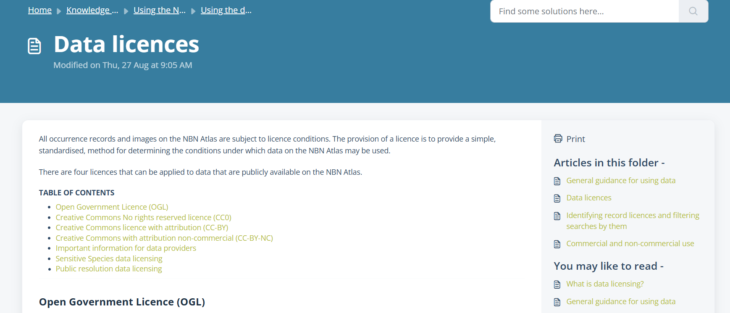
Tip: Some longer articles contain a table of contents to help you quickly find relevant information.
How to submit a ticket
If you cannot find the information you are looking for, or want to report an issue with the website, please contact us by submitting a ticket through the portal:
- Click on submit a ticket in the upper-right corner
- Enter your email address, subject heading and a description of the issue
- Use the attachment option to send us any screenshots or photos to help us answer your question
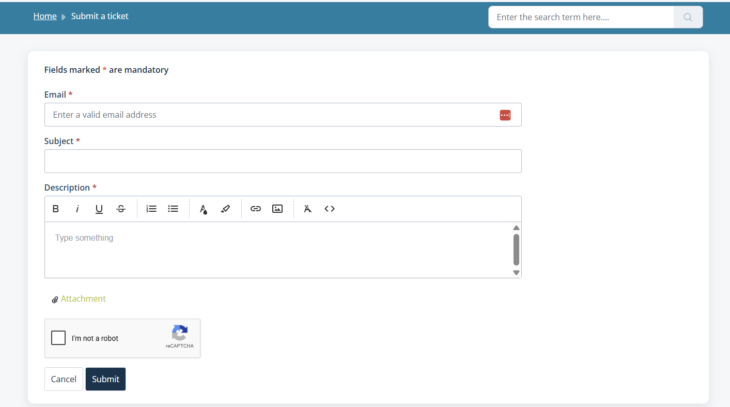
Tip: You do not need a Freshdesk account to submit a ticket or view help articles, however having an account allows you to view and keep track of all your previously submitted tickets.
How to reply and track submitted tickets
- You will receive a response from support@nbnatlas.freshdesk.com in your email inbox. You may want to check your spam folder just in case it gets directed there.
- Choose to reply directly through your email inbox or through the portal
- If you want to track your submitted tickets, first login to your account in the upper-right corner of the portal homepage (or create an account if you do not have one)
- Click on ‘Tickets’ or ‘View all tickets’
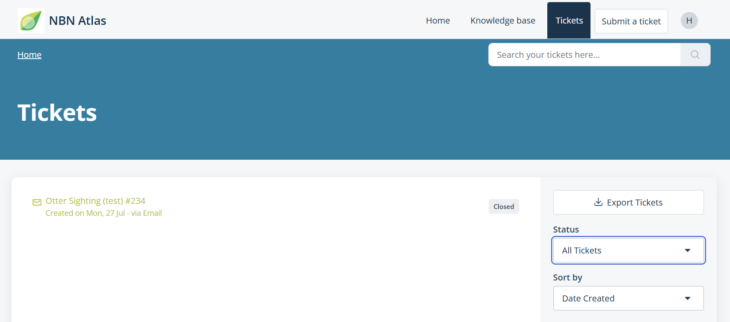
Tip: Use the filter options on the right to sort tickets by status: All Tickets, Open or Pending, or Resolved or Closed.
We hope you find the new system easy to use and an efficient way to find answers to your queries. If you do have any problems, you can still email us at support@nbnatlas.org or data@nbnatlas.org as these will be forwarded to the new system. Or you can use our new email address support@nbnatlas.freshdesk.com